Key finding
In our live test, the sample record preserved the exact question and reply. The notification included the fictional contact, page URL and conversation reference. The demo rendered the notification without delivering an email.
Jump to a section
If a sales rep follows up tomorrow, what will they actually know about the buyer? We made the visitor’s answer and the rep’s view inspectable in the same browser session.
1. Send one bounded buyer question
The public page sends a JSON object with one field, question, to POST /api/buyer-demo/ask. The demo caps input at 400 characters. The assistant receives a small set of approved facts about LuxonLink, LuxonLeadAssist and how Xillix scopes a pilot. A routine question uses GPT-6 Luna by default. Explicit comparisons and trade-offs can select GPT-6.1 Sol through the shared model router.
To repeat our test, paste the question into the buyer demo, or send the same request to the public endpoint.
curl --request POST 'https://api-luxonleadassist.xillix.io/api/buyer-demo/ask' \
  --header 'Content-Type: application/json' \
  --data '{"question":"Compare LuxonLink and LuxonLeadAssist for a team with employee handbook questions and website sales inquiries."}'
In our November 3, 2026 run, the answer distinguished the employee audience and PDF citations from the website audience and optional sales contact. That gives the rep two jobs to discuss and a concrete opening question: which audience should the pilot serve first?
2. Build a sample record from the same exchange
The server creates a fictional contact using the platform’s lead model. Its response contains an answer and a handoff object. The handoff carries the contact, source page, initial status, exact buyer question and answer text. The page displays the answer first. Selecting Request a sample follow-up reveals the already prepared sales view. The preview creates no production lead. Open the original sample response (JSON) to inspect the exact buyer question, answer, sales record, and notification from this run.
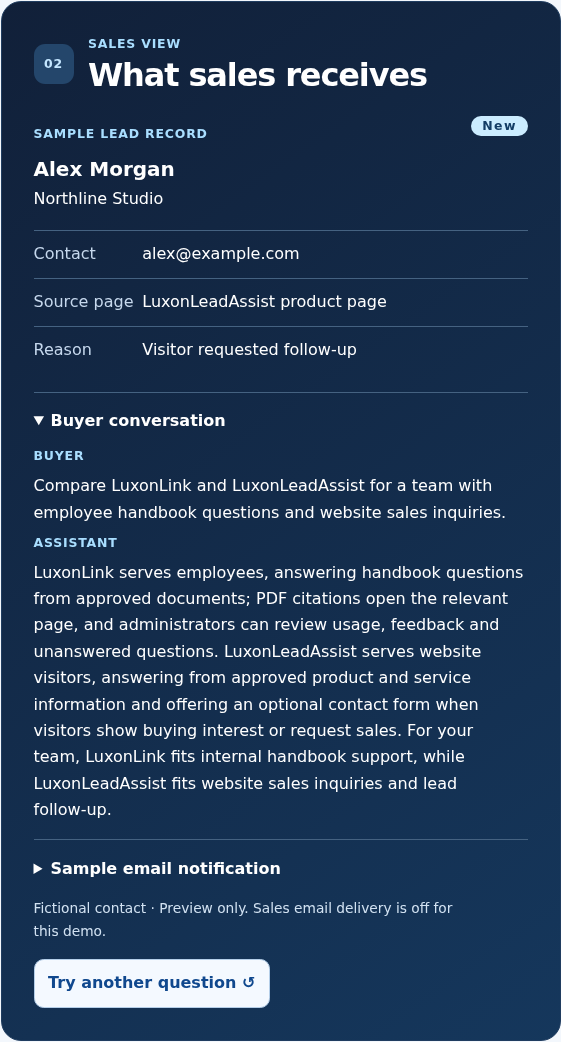
Captured from the live Xillix demo on November 3, 2026. Alex Morgan is the demo’s fictional contact.
3. Render the sales notification
The preview calls the same notification formatter used in normal lead capture. The formatter takes a record and a field selection and returns a subject and body. A configured production workflow can pass those strings to its mail transport. The demo displays them in the browser.
Open Sample email notification. In this run the subject named Alex Morgan. The body contained the sample name, email, company, source page and a conversation identifier. The full buyer exchange was in the sales view. A team deciding what goes in an email can compare the two outputs field by field.
4. Check the handoff contract
Compare the submitted text with handoff.question and the displayed answer with handoff.answer. Check that the page in the notification is the page where the buyer asked. Finally, test rendering the preview separately from delivering a production notification. These checks can catch a swapped transcript or missing page even when the assistant writes a reasonable answer.